Digitals & Polaroids Cropping Overlay — Free PNG for Capture One
The problem: inconsistent crops across shots and sessions
For a long time I cropped digitals by eye. I roughly knew where the eyes should land, but between sessions and models there were always small shifts — eyes slightly higher or lower, feet closer to or further from the edge. On a single image you can’t tell. The problem shows up when you put images of the same type side by side or assemble them into a video.
I wanted to automatically generate a video comp card from digitals — a short 9:16 clip where photos transition smoothly. For that to look good, the framing needs to be repeatable — top of the head always in the same place, frame proportions always consistent. Between shot types the eyes naturally land at different heights (the closer the crop, the more pixels from the crown to the eyes) — but if those proportions aren’t consistent across images, the face “jitters” in the video and the result looks amateur.
I needed a system that enforces repeatable framing within each shot type — regardless of the model, session, or day.
The solution: a Capture One overlay
I made a transparent PNG overlay that I apply in Capture One as a Composition Overlay. The guide lines define the exact eye position for each shot type — just align the crop to the corresponding line and you’re done. No guessing, no drift between sessions.

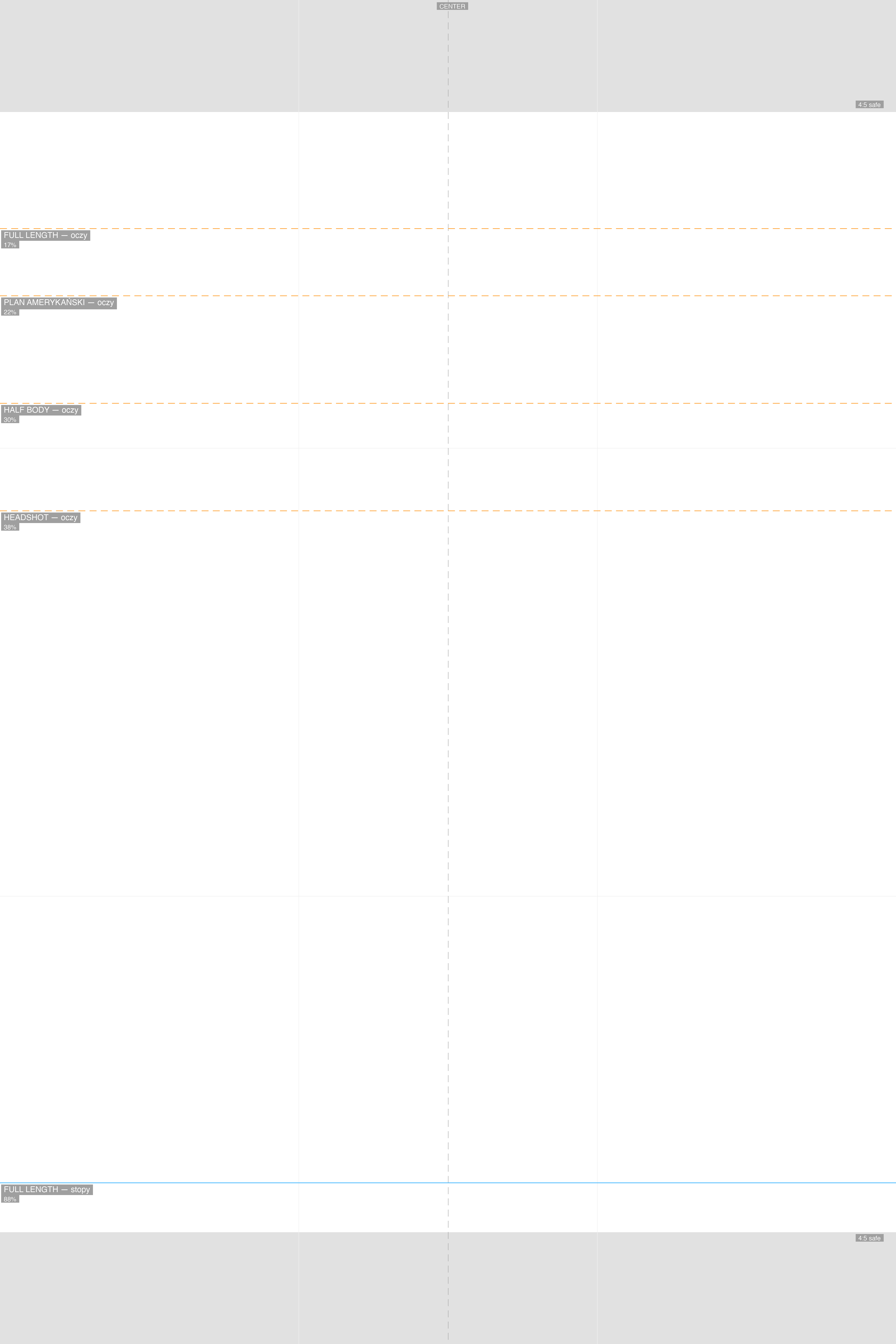
The file is 4000×6000 px (2:3 aspect ratio), transparent background. Lines:
- 4 eye lines (orange, dashed) — eye position for each shot type:
- Full Length: 17%
- American Shot: 22%
- Half Body: 30%
- Headshot: 38%
- Feet line (blue, solid) at 88%
- 4:5 safe zone — gray bars at top and bottom (~8.3%). The photo is cropped at 2:3, and for the video I cut a 9:16 slice from it — but then the model posts the same photo on Instagram, which wants 4:5. The safe zone shows what gets cut in a 4:5 crop, so I can already see at the cropping stage whether the head and feet will have enough margin on IG. The same 2:3 images also go to the agency — and they look consistent there too, because the framing is standardized
- CENTER line — vertical center line for face alignment
- Rule of thirds — subtle grid in the background
Line positions are calibrated so that after cropping to 4:5 (Instagram), the head and feet have reasonable margins from the edges. Tested on real session photos (35mm, f/4, ISO 100).
Here’s the overlay applied to a photo in Capture One:

How to use
- Download the PNG file (link below)
- Copy to
~/Library/Application Support/Capture One/Overlays/ - In Capture One: View → Composition Overlay → select the file
- When cropping, align the shot to the corresponding eye line
Download
The result: automated video comp card
Since every shot of a given type now has eyes at exactly the same height and the same framing, I can automatically generate a video comp card — a short 9:16 clip where photos transition smoothly with no face “jittering” between frames.
For video generation I use Remotion (React + FFmpeg). The entire pipeline — from the overlay generator script to the video output — was built with Claude Code.
My clients get the comp card as a bonus with their session. Repeatable, polished, ready to publish.
If you’re a photographer and you shoot digitals — download the overlay above, test it on your photos. Questions about the workflow or automation? Hit me up on Instagram.
If you’re a model looking for a photographer for polaroids — check my test offer. The video comp card is included as a bonus.